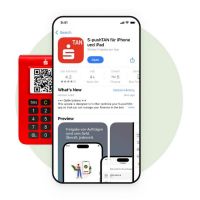


To do so, you will need:
Always:

S-pushTAN-App
Before starting, download the latest version of the app, which is free, from the Apple or Google Play Store onto your phone or tablet.
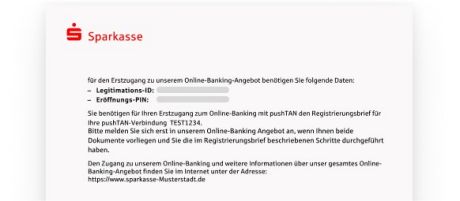
Online banking login details
The S-pushTAN-App is designed for authorising online banking transactions. This is why, when setting up the app, you will also need your Sparkasse online banking login details. They are:
- User name or login ID
- Initial PIN (first time use) or the PIN you created
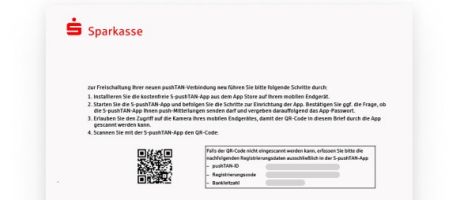
pushTAN registration letter
When setting up the S-pushTAN-App for the first time, your Sparkasse will send you a registration letter with a QR code. You will need this code when setting up the app for the first time.
When setting up the app a repeat time:
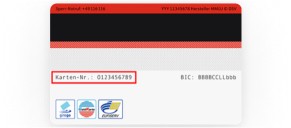
Sparkassen-Card (debit card) – card number
If you are setting up the app a repeat time, you will be asked to enter your card number. This is why it is important to have your Sparkassen-Card (debit card) to hand. The card number is on the back of the card.
How to:
Setting up pushTAN for the first time with registration letter
The following guide contains step-by-step instructions for setting up the S-pushTAN-App with the registration letter. The letter will be sent to you by your Sparkasse.
Note: These instructions are an example only and may slightly differ depending on your mobile end device or bank.
Set up S-pushTAN-App again – on new phone
If you would like to set up the S-pushTAN-App on a new device, you will need to first install it and then follow these instructions.
Note: These instructions are an example only and may slightly differ depending on your mobile end device or bank.
Set up S-pushTAN-App again – after reinstallation
You are already using pushTAN for online banking with your Sparkasse and have reinstalled the S-pushTAN app after e.g. having forgotten your login details. The following instructions will guide you through all of the steps for setting up the S-pushTAN-App for a repeat time.
Important – before following these instructions, you will need to reinstall the S-pushTAN-App:
For Android:
Delete the S-pushTAN-App from your smartphone, download it from the Google Play Store and install it again.
For iPhones:
Close the app. Please search for “Close app” on the Apple Help page to find out how to do so.
Go to Settings on your iPhone or iPad. Search for the “pushTAN” app and click on “Reset app”. Next, open the S-pushTAN-App. If it hasn’t yet been reset, repeat the above steps.
Note: These instructions are an example only and may slightly differ depending on your mobile end device or bank.